Door Symbols on Floor Plans: 16 Types Explained Visually
By Floor Plan Analyzer, an AxcelerateAI practice
A door symbol usually tells you where an opening sits, how its panels move, and which side needs space for that movement. Read the wall break, the leaf and the movement mark together. Counting arcs by themselves is an easy way to turn one doorway into two.
This guide compares 16 opening configurations using original plan-view diagrams. The drawings are simplified reading aids: the project legend, door schedule and referenced details remain the authority for a particular set. A schematic is not enough to order hardware, verify a rating or establish a clear opening.
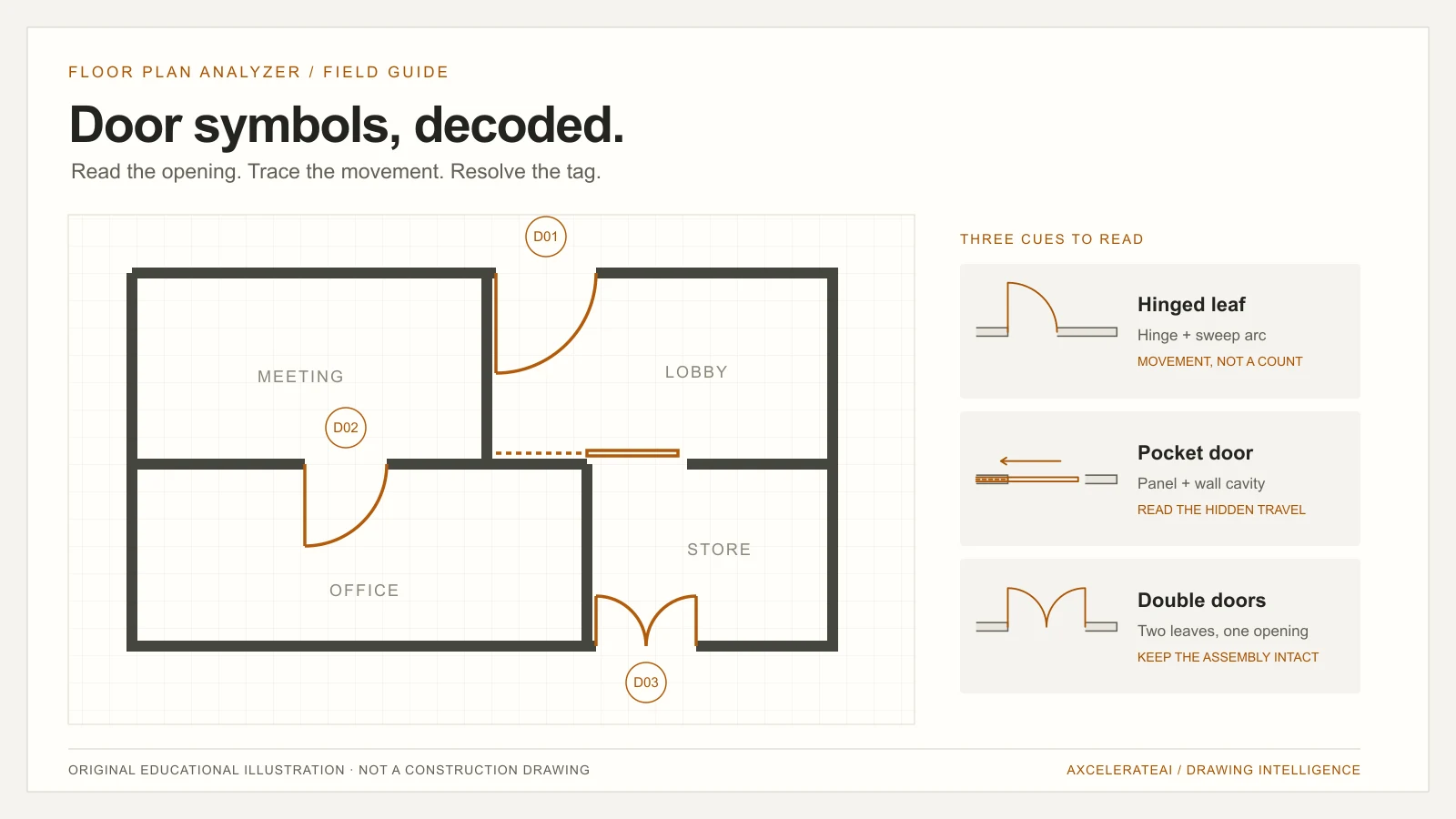
What do door symbols on floor plans mean?
Door symbols on floor plans describe an opening and how its leaf or panels move. Hinged doors usually combine a leaf line with a swing arc; sliding and pocket doors show panel travel; folding doors use jointed leaves. The adjacent tag connects the opening to its schedule. The project legend defines the exact notation.
- A pair of leaves can belong to one opening: count openings and leaves separately.
- Swing direction and hardware handing are different observations.
- Symbols need tags, schedules and details to establish sizes, ratings and hardware.
16 door symbols at a glance
Amber lines show the moving panels and movement cues; grey lines show the wall. These original schematics illustrate operating configurations, not a mandated CAD standard. Confirm each convention against the drawing legend.
Download the 16-symbol visual reference (SVG, printable)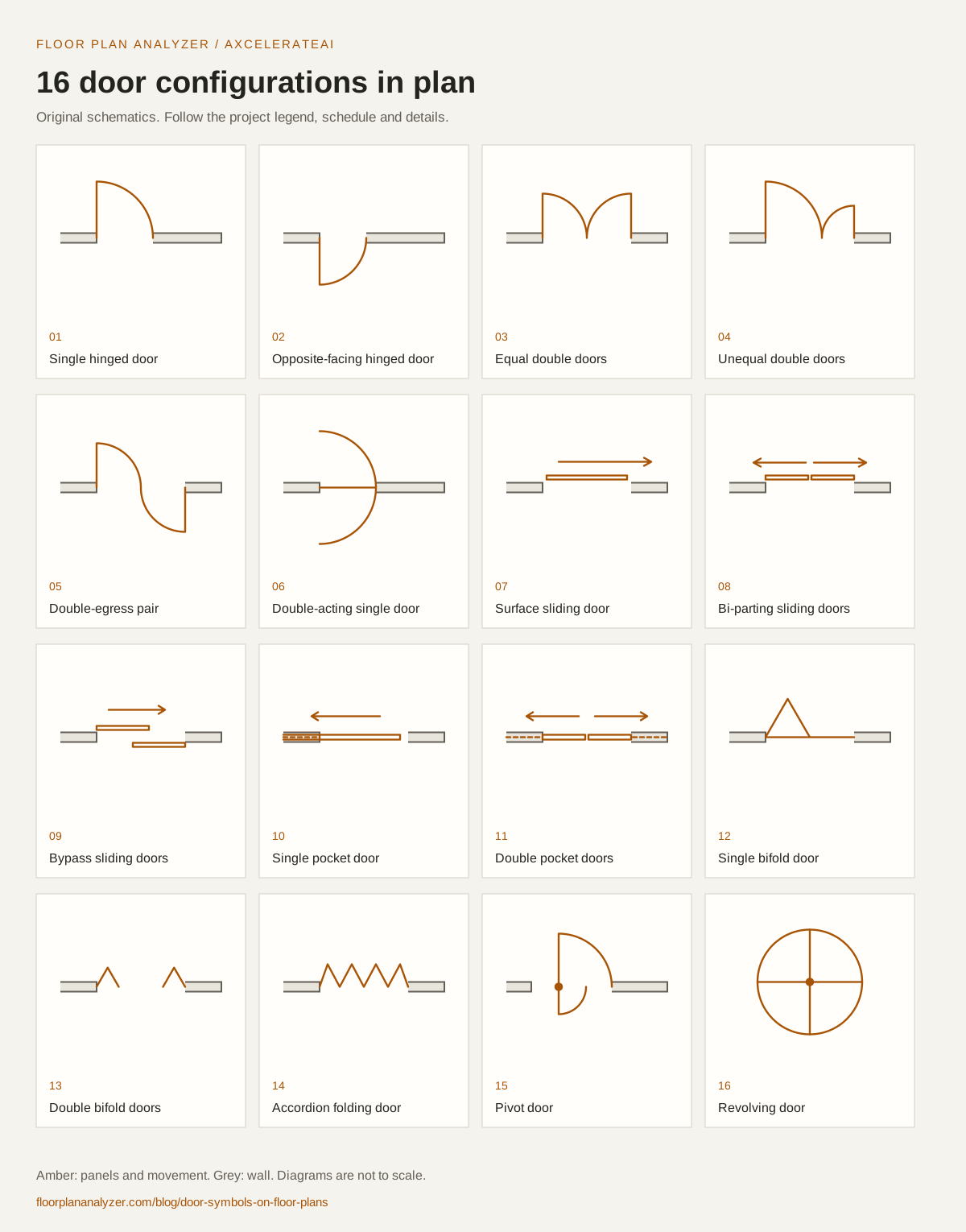
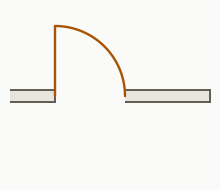
01 / Single hinged door
A leaf drawn from one jamb and a quarter-circle sweep indicate a hinged opening. The arc describes movement, not a second physical panel.
Check: Read the hinge and the room the arc enters together. Do not infer an ordering hand from a mirrored plan alone.
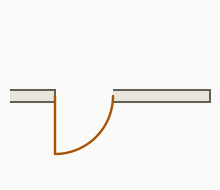
02 / Opposite-facing hinged door
The same hinged leaf can swing toward the other side of the wall. This illustration reverses the facing while keeping the hinge at the left jamb.
Check: A change in swing direction does not create an additional door. Confirm orientation against the project conventions.
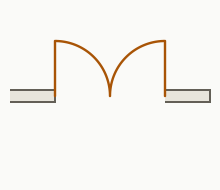
03 / Equal double doors
Two leaves meet within one opening, with a swing for each leaf. Equal leaves divide the opening symmetrically.
Check: Count one opening and two leaves. A takeoff that counts every arc as a separate opening will overstate the quantity.
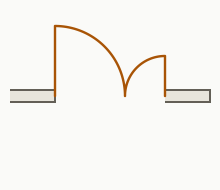
04 / Unequal double doors
A wider active leaf and a narrower companion leaf share one frame. The arcs and leaf lengths differ.
Check: Check the schedule for active and inactive leaf sizes. Do not split the rough opening into two unrelated door records.
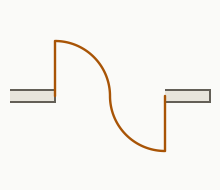
05 / Double-egress pair
Two leaves swing in opposite directions within the same opening. The plan therefore shows sweeps on opposite sides of the wall.
Check: Distinguish this from two adjacent single doors. Confirm the frame and opening identifier on the schedule.
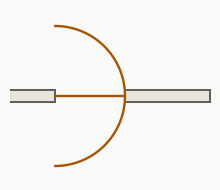
06 / Double-acting single door
A single leaf can swing to either side. Two opposed sweeps describe one leaf moving through two directions.
Check: Two arcs do not mean two leaves. Use the hinge position and the continuous opening to resolve the count.
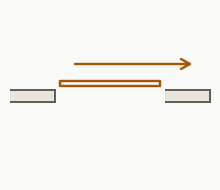
07 / Surface sliding door
A panel travels parallel to the wall rather than rotating from a jamb. A track or movement arrow may make the travel direction explicit.
Check: Check where the open panel parks. A missing swing arc alone is not proof that an opening is sliding.
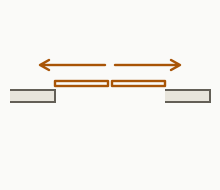
08 / Bi-parting sliding doors
Two panels move away from the centre of an opening. The schematic arrows indicate opposed horizontal movement.
Check: Keep panel count separate from opening count. A centre meeting line can be faint in a scan.
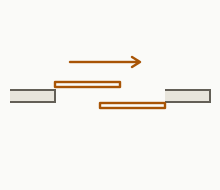
09 / Bypass sliding doors
Offset parallel panels slide past one another. The two tracks or offset panel lines help distinguish them from a single sliding panel.
Check: Overlapping lines may be mistaken for a window. Look for the surrounding room access and the door tag.
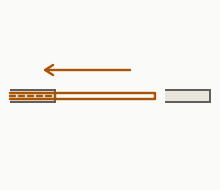
10 / Single pocket door
One panel retracts into a wall cavity. The pocket is often drawn with thin or dashed lines within the wall.
Check: The concealed panel can be nearly invisible at reduced resolution. Check the pocket detail before measuring the wall as solid.
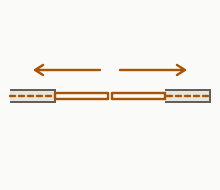
11 / Double pocket doors
Two panels meet at the centre and retract into pockets on opposite sides. The opening and both cavities need to be read together.
Check: Record one opening with two moving panels. Do not treat the pocket cavities as additional openings.
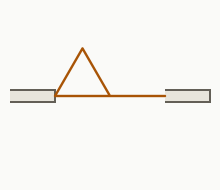
12 / Single bifold door
A hinged pair of panels folds against one side of the opening. The plan shows an angled jointed leaf rather than a single flat swinging panel.
Check: A bent line can resemble furniture or a hatch boundary. Follow it back to the jamb and check the opening tag.
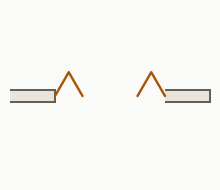
13 / Double bifold doors
Folding pairs are arranged at both jambs. The two sets fold away from the centre of a shared opening.
Check: Four panels do not imply four openings. Preserve the assembly as one opening, with its panel arrangement recorded separately.
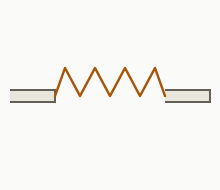
14 / Accordion folding door
Several narrow connected panels fold into a stack. A zigzag convention can indicate the folding assembly.
Check: The exact panel geometry is often symbolic. Use the schedule for the assembly width instead of measuring each drawn fold.
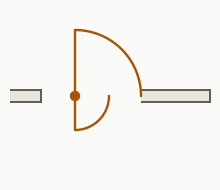
15 / Pivot door
The rotation point sits away from the leaf edge. In this schematic a short tail rotates behind the pivot as the longer portion opens.
Check: An offset pivot should not be silently classified as an edge-hinged leaf. Confirm the hardware and detail references.

16 / Revolving door
Radial wings rotate within a circular enclosure. The enclosure and centre hub distinguish the assembly from swing arcs nearby.
Check: Treat the enclosure as one entrance assembly. The plan can show different wing arrangements; the schedule resolves the specified product.
How to read a door symbol in four passes
Start with the wall opening and its two jambs. Then trace the panel back to its hinge, pivot or track. Next read the arc, arrow or folded geometry to understand movement. Finally locate the tag and follow it to the schedule. This sequence keeps the physical opening separate from the way it is represented.
The illustrations group doors by opening behaviour. They are not 16 interchangeable product specifications. The same assembly can appear differently at another drawing scale, in another office template, or in a demolition view.
- Opening: the gap and frame location in the wall.
- Leaf or panel: the moving part, drawn open, closed or diagrammatically.
- Movement: swing arc, travel arrow, fold or rotation.
- Reference: a tag that connects the plan to the schedule and details.
References: Autodesk: door types and opening methods
Compare hinged, sliding, pocket and folding door symbols
Use this table to choose the next detail to inspect. The movement cue is a starting point, not a complete specification. The 16 illustrated configurations above include variations within these operating families; they are not an exhaustive catalogue of every door product.
| Family | Look for | What to confirm |
|---|---|---|
| Hinged | Jamb, leaf and sweep arc or straight swing mark | Hinge, facing and whether one or two leaves share the frame |
| Double-acting | One pivoting leaf with movement to both sides | One leaf versus a two-leaf assembly |
| Sliding / bypass | Parallel panel lines, tracks and travel arrows | Which panels move and where they park |
| Panel entering a thin or dashed wall cavity | Single or paired pockets and the cavity extent | |
| Bifold / accordion | Connected angled panels or a folding zigzag | Assembly width and actual panel arrangement |
| Pivot | Rotation point inset from the leaf edge | Pivot offset and a possible short leaf tail |
| Revolving | Circular enclosure, hub and radial wings | Assembly identity and product schedule |
References: Autodesk: door types and opening methods · dormakaba: sliding and folding hardware terminology · Autodesk: door display and straight swing
A swing arc is movement, not an extra door
For a hinged leaf, the arc follows the path of its free edge as it rotates about the hinge. A double-leaf opening may have two arcs; a double-acting single leaf may also have marks on both sides. The surrounding geometry distinguishes them. The count you need determines what to record: one frame opening, two leaves, or a hardware set are different quantities.
Keep hinge side and swing facing as separate observations. Mirroring a view can change the visual interpretation. Hardware handing conventions also depend on the reference side used by the project or supplier. Record what is visible and resolve the ordering terminology from the schedule instead of guessing a hand from one isolated crop.
References: Autodesk: hinge hand and swing facing · Andersen: exterior-view handing convention
Sliding, pocket and folding doors need context
A surface slider has a panel that parks beside an opening. A pocket slider parks inside a wall cavity. Bypass panels overlap on separate tracks. They may all lack a swing arc, but the absence of an arc is not a reliable classification rule: a drawing can simply suppress swing graphics.
Folding doors are another counting trap. A single bifold assembly has connected panels, and a double bifold has a folding group at each side. A zigzag is a shorthand for folding movement, not a dependable record of manufactured panel count. Use the schedule when the drawing is schematic.
References: dormakaba: sliding and folding hardware terminology · Autodesk: door display and straight swing
Handing, inswing and outswing: why the reference side matters
Inswing and outswing describe movement relative to an agreed side of an opening. Left-hand and right-hand labels need a viewing convention. A plan can show the hinge and swing facing, but it may not state the reference side used by the supplier. Preserve those geometric observations rather than silently translating them into an ordering code.
For example, Andersen describes its window and patio-door handing from the exterior and notes product-specific exceptions. This is a manufacturer example, not a convention to apply automatically to all door schedules. Revit likewise exposes hinge hand and swing facing as separate controls. When a procurement decision depends on the label, use the project’s schedule and the relevant product instructions.
References: Autodesk: hinge hand and swing facing · Andersen: exterior-view handing convention
What the symbol cannot tell you
A swing symbol alone does not establish material, acoustic performance, fire resistance, accessibility compliance, security hardware or an automatic operator. Some projects encode extra information through tags, linework or special markers; others put it in a schedule or detail. A glazed appearance does not establish a glazing specification.
Likewise, the drawn leaf length is not automatically the clear passage width. Frame geometry, the position of the open leaf and hardware affect the usable opening. For dimensional work, identify what is being measured and use the correct dimension, schedule field or detail. Do not turn a schematic arc radius into a verified clear width.
Why a door can look different on another drawing
Display settings affect the symbol as well as the physical assembly. AutoCAD Architecture supports straight-line door swing display, so the absence of a curved arc does not by itself establish a slider. A printed export can also omit, simplify or merge thin graphical elements. Compare the tag and frame before making a classification.
On renovation sets, existing, new and removed openings may use different layers, line types or graphic emphasis. Read the demolition or renovation legend before adding quantities. A repeated door on an enlarged plan can be another view of the same opening rather than a new instance. Keep sheet purpose, revision and location in the counting rules.
On a low-quality scan, a faint pocket line may disappear and a double-leaf meeting point may merge with a wall edge. Review the original resolution and nearby details. Upscaling an image can make it easier to inspect, but it does not recover missing source information.
References: Autodesk: door display and straight swing
Cross-reference the plan with the door schedule
Suppose a plan shows a double door tagged D-12. Treat D-12 as a reference to resolve within that drawing set, not as a universal door type. Read the schedule headers: a width might describe the assembly or a leaf, depending on the document. Record the unit, the source sheet and the row used.
For a reconciliation pass, compare the plan tags with the schedule identifiers, then review duplicates, missing rows and conflicting fields. Repeated tags can be legitimate type references rather than unique door instance IDs. A useful output distinguishes instances from types before reporting a mismatch.
- Keep the plan sheet, drawing region and revision with each opening.
- Resolve whether the tag identifies an instance, a type or a detail.
- Separate opening count, leaf count and panel configuration.
- Flag unreadable or conflicting fields instead of supplying plausible values.
Worked example: one opening, two leaves, one review decision
The following is a made-up teaching example. It is not an estimate, a client outcome or a performance benchmark. Imagine one double-leaf opening tagged D-12 on a ground-floor plan. A matching schedule row describes an overall assembly width of 1,800 mm and two equal 900 mm nominal leaves. Those values are assumptions for this example only.
The useful record contains one opening and two leaves. It retains the observed tag and the schedule row used to interpret it. It does not report a verified clear passage width, because no relevant detail has been checked. If another sheet shows D-12 as a type shared by several doors, the tag alone is not a unique instance key.
A review-ready reconciliation distinguishes observed geometry from schedule assertions and unresolved fields. This separation lets an estimator inspect the source of each field instead of receiving a single unexplained number.
| Field | Example value | Evidence / treatment |
|---|---|---|
| Opening instance | Ground-floor opening 07 | A distinct local instance, not the tag alone |
| Observed tag | D-12 | Read from the plan; unresolved if OCR is ambiguous |
| Opening count / leaf count | 1 opening / 2 leaves | Defined counting convention |
| Assembly width | 1,800 mm | Assumed overall-width column in the example schedule |
| Nominal leaf width | 900 mm each | Assumed equal-leaf schedule entry |
| Clear opening width | Not verified | Requires the relevant geometry / detail |
| Rating / hardware set | Unresolved | No inference from the swing symbol |
How AI door detection uses these visual cues
A drawing-analysis pipeline can detect candidate openings, locate door tags with OCR, and associate them with walls, spaces and schedule rows. Detection and classification are separate jobs. Finding a bounding box around a door does not establish that its operating type, rating or scheduled width has been read correctly.
At Floor Plan Analyzer, an AxcelerateAI practice, we fine-tune drawing models on the client’s plans, fields and workflow. Door recognition is one stage of custom AI engineering: the downstream output might be a review overlay, an opening table or records delivered into an existing estimating system. The correct scope depends on the drawing conventions and the decision those records support.
Evaluate unfamiliar door families, reduced-resolution scans and drawings with hidden swings separately. Keep the original image coordinates so a reviewer can inspect each result. When a type cannot be resolved, an explicit unknown with a review marker is more useful than a confident substitute.
A review checklist before using door counts in a takeoff
Agree the output definition before counting: opening assemblies, individual leaves and hardware sets answer different questions. Then test the review workflow on a small, representative set of drawings, including scans and unfamiliar door families. A count is actionable only when the team can reconcile it with source drawings and the scope of the takeoff.
- Use the correct drawing issue and exclude superseded revisions.
- Separate floor plans from reflected ceiling plans, elevations and enlarged duplicates.
- Check whether repeated tags identify types or individual instances.
- Keep fixed glazing and sidelights separate from moving door leaves.
- Review omitted arcs, faint pockets and fold marks at source resolution.
- Link each opening to its source sheet and location.
- Mark missing tags, unmatched schedule rows and conflicting sizes for review.
- Export unresolved fields explicitly; do not replace them with assumed values.
Try the workflow on a drawing of your own
Send an example plan with its door schedule and legend where available. Tell us whether your output needs opening counts, leaf configuration, tag reconciliation or schedule fields. We can review which parts are observable, what needs human review, and what a model fine-tuned on your drawings would need to learn.
Frequently asked questions
How is a door shown on a floor plan?
A hinged door is commonly shown as a break in a wall, a straight leaf line and a sweep mark. The hinge is the rotation point. Sliding, pocket, folding and revolving assemblies use different movement cues. Start with the project legend because not every drawing uses the same graphics.
Does a double door count as one door or two?
For an opening takeoff, a double-door assembly is one opening with two leaves. If your scope counts leaves or hardware sets, use those quantities separately. State the counting rule rather than reporting an ambiguous total.
What is the difference between a pocket door and a sliding door symbol?
A pocket door is a sliding configuration whose panel retracts into a wall cavity. A surface slider parks beside the wall; bypass panels slide past one another. Pocket or track lines may be faint, so use the tag and details when the plan is unclear.
Does a swing arc tell me whether a door is fire-rated?
No. The ordinary sweep mark describes movement. A rating needs the project’s documented tag, schedule or specification references. Do not infer fire resistance or compliance from the operating symbol.
Are these 16 symbols a universal CAD standard?
No. They are original educational schematics of 16 operating configurations, including related variations. Office templates, display settings and project conventions vary. The drawing legend and referenced documents take precedence.
What about French doors, garage doors and rolling shutters?
A glazed paired hinged door may resemble the equal-double configuration in plan. French styling, glazing and materials require the schedule or detail. Overhead and rolling assemblies are outside these 16 examples; their mechanism often needs another view or a schedule reference to resolve.
Can AI extract door symbols and schedule data automatically?
A custom pipeline can combine opening detection, OCR and schedule matching, but the fields it can support depend on the drawings and evaluation results. Review difficult classes and preserve source locations. A detected box alone does not verify handing, rating or clear width.
References and illustration notes
Sources support the terminology and interpretation notes cited above. Worked examples and diagrams are our own educational material, not client drawings or measured project results.